How to Create CMS-Driven Tabs in Webflow Without Finsweet Attributes (Step-by-Step Guide)

Contents
Webflow’s native Tabs element doesn’t support CMS content — and that makes it kind of annoying when you're trying to build fully dynamic tabs. Whether it's for FAQs, service pages, product features, or treatment categories, you quickly hit a wall if you're using Collection Lists. You can't just drop CMS content inside a native tab pane — Webflow won’t allow it.
Sure, tools like Finsweet Attributes offer a plug-and-play workaround (and we’ll mention that later too), but in this tutorial, we’ll show you how to build your own dynamic tab system using a bit of custom code and a clean Webflow setup.
Why not just use Finsweet?
Finsweet’s Attributes are great — fast to implement, reliable, and beginner-friendly. But there are a few good reasons you might want to roll your own:
- You want to understand how it works under the hood
- You need more flexibility than pre-built attributes allow
- You don’t want to add external dependencies to your site
- You’re optimizing for page speed and want to keep things lightweight
- Or maybe… you just enjoy building custom solutions and leveling up your Webflow skills 💪
This tutorial walks you through everything — from CMS setup to layout to JavaScript — so by the end, you’ll have a fully functional, scalable tab component that works dynamically with your CMS content.
No plugins. Just Webflow + a sprinkle of JavaScript magic.
🔗 Cloneable Webflow Project
Live demo:
👉 https://cms-tabs-without-finsweet.webflow.io/
Clone it:
👉 Cloneable Webflow Project
Step 1: Set Up Your CMS Collection in Webflow
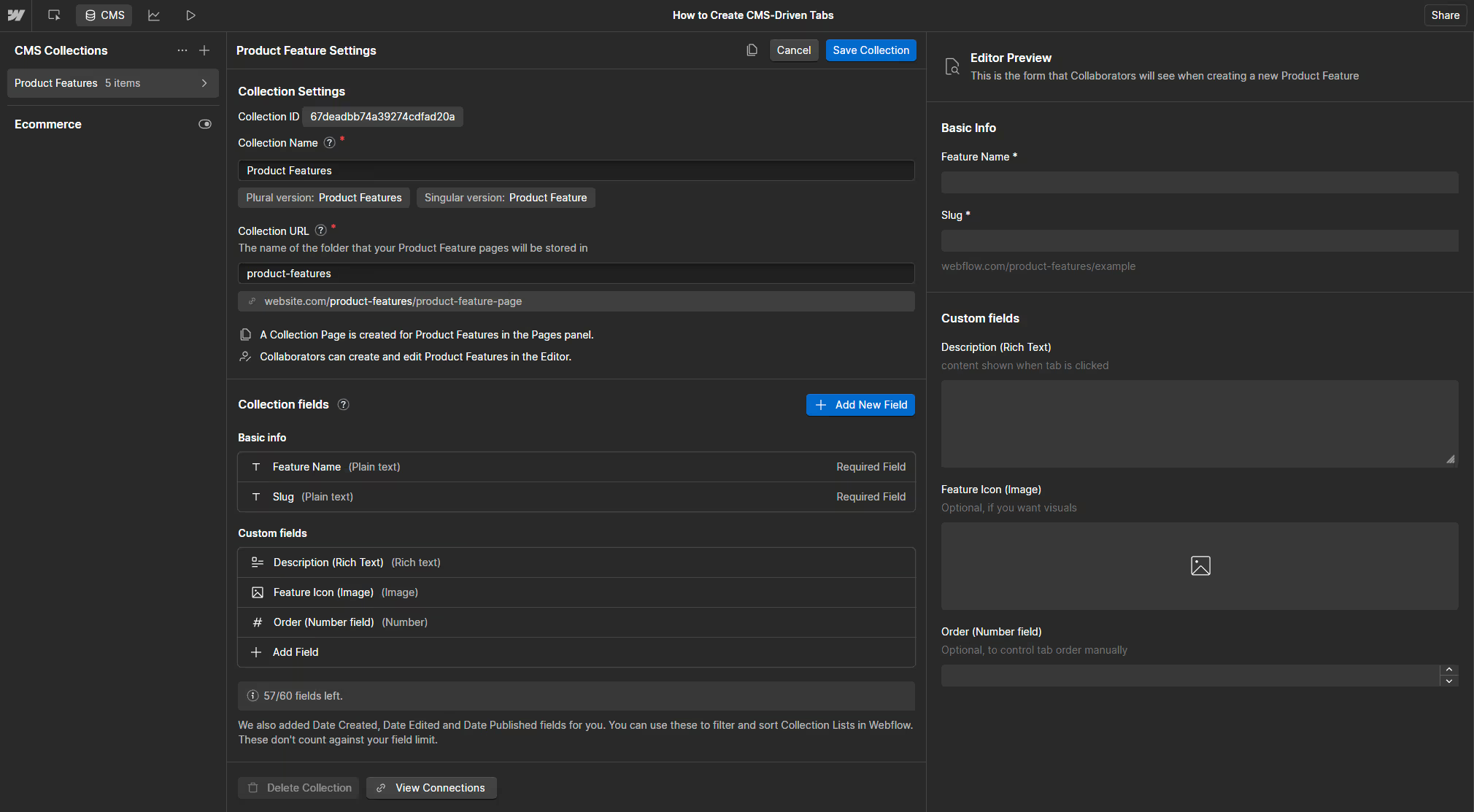
We’ll build a Product Features Tabs Section powered by a CMS collection. Each tab will represent a product feature (like "Speed", "Security", "Integrations", etc.), and when clicked, it’ll show the full description from the CMS.
- Go to the CMS panel in Webflow
- Click + New Collection, name it something like
Product Features - Add the following fields:
- Feature Name (Plain Text) — used as the visible tab label
- Slug (generated automatically) — this will power the sync
- Description (Rich Text) — displayed inside each tab
- (Optional) Feature Icon (Image)
- (Optional) Order (Number) — to sort tabs manually
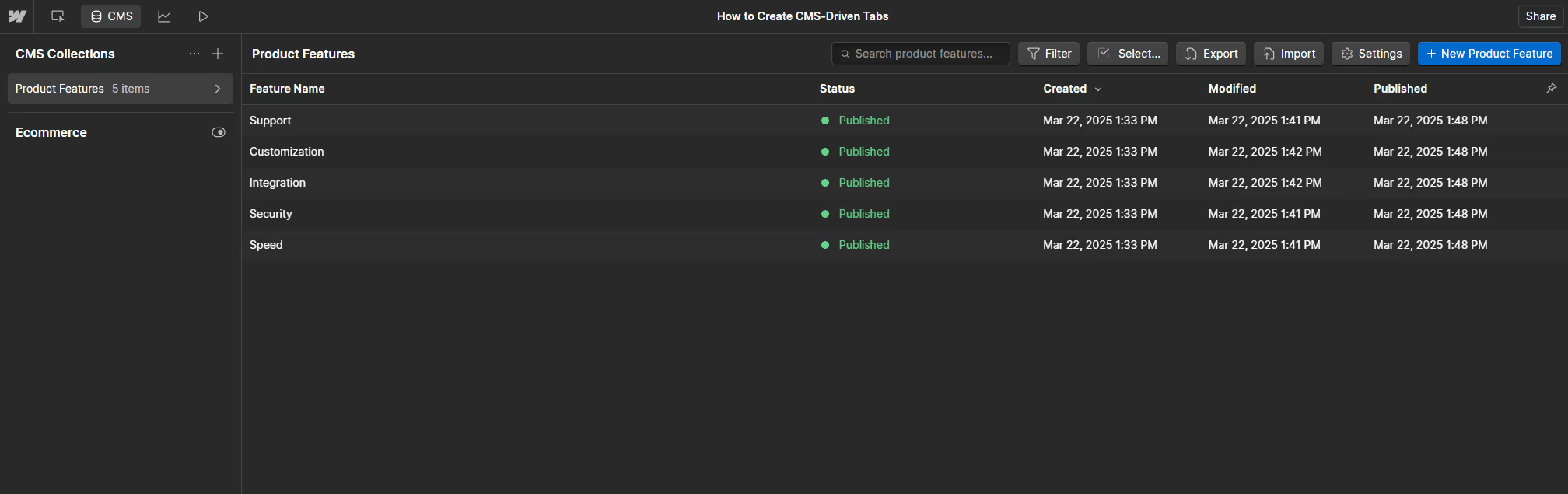
- Add 4–5 sample items like:
- Speed
- Security
- Integrations
- Customization
- Support
- Publish your site so the CMS data is live
Step 2: Build a Fully CMS-Driven Tab Layout (No Native Tabs)
We won’t use Webflow’s native Tabs component at all. Instead, we’ll use Collection Lists to generate both the tab buttons and tab content — linked together using the CMS Slug field and a couple of custom attributes.
What You'll Build
- A Collection List that generates all the tab buttons
- A second Collection List for the content of each tab
- A system where each tab and content block is matched using
data-tabanddata-tab-contentattributes
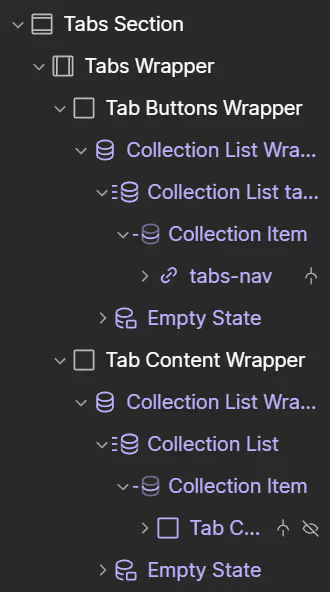
Add the Layout Structure
- Add a Section called
Tabs Section - Inside, add a Div Block called
Tabs Wrapper - Inside that, add two nested divs:
Tab Buttons WrapperTab Content Wrapper
Create a CMS Collection List for Tab Buttons
- Inside
Tab Buttons Wrapper, add a Collection List - Bind it to your Product Features collection
- Choose a horizontal or vertical layout based on your design
- Inside each Collection Item:
- Add a Link Block with the class
tabs-nav - Set a custom attribute:
- Name:
data-tab - Value: Bind it to the Slug field
- Name:
- Inside the Link Block:
- Add a Text Block (bound to Feature Name)
- (Optional) Add an Image for icons if using
- Add a Link Block with the class
Style the Active State
- Create a combo class:
tabs-nav is-active - Use it to style the active tab differently (e.g., bold text, underline, background)
- Don’t apply it manually — our script will handle it
Create a CMS Collection List for Tab Content
- Inside
Tab Content Wrapper, add another Collection List - Bind it to the same
Product Featurescollection - Use a block layout (one item per row)
- Inside each Collection Item:
- Add a Div Block, class
tab-content-block - Set a custom attribute:
- Name:
data-tab-content - Value: Bind it to the Slug
- Name:
- Inside that block:
- Add a Heading (bound to Feature Name)
- Add a Rich Text Block (bound to Description)
- Add a Div Block, class
- Style the content blocks to:
- Have
display: noneby default - Use a class like
.is-activefor the visible block (display: blockor use Webflow interactions)
- Have
Why This Works So Well
- No need to update tabs manually
- Fully dynamic — just update the CMS and you're done
- Layout and logic are separated — which keeps everything clean and flexible
- Ready for JavaScript interaction and even deep linking
Step 3: Add JavaScript to Sync the Tabs
Now it’s time to make it all work.
This JavaScript connects the tab buttons to the matching content blocks. It also shows the first tab by default and supports deep linking via URL hash.
What the Script Does
- Listens for clicks on
.tabs-nav - Applies
.is-activeto the correct tab and content - Shows the first tab by default on page load
- Enables deep linking via
#slugin the URL
Pre-Check Before Adding Script
- All buttons use
data-tab="{{ Slug }}" - All content blocks use
data-tab-content="{{ Slug }}" - You’ve styled
.is-activefor both tabs and content
🔁 Bonus Tip: Slugs + Optional Features
I’m using the Slug field for both data-tab and data-tab-content. It just works better — cleaner URLs like #speed-optimization, no weird characters, and it's perfect for linking tabs.
I also added two optional extras to the script:
- Deep linking — so you can open a tab directly using a
#slugin the URL - Auto-scroll — the page scrolls to the tab section when a deep link is used
They’re both clearly marked in the code, so if you don’t need them, just delete or comment those parts out. The main tabs still work great without them.
💡 Want to See It in Action?
Live demo:
👉 https://cms-tabs-without-finsweet.webflow.io/
Clone it:
👉 Cloneable Webflow Project
